What Is Exit Code 1 in Minecraft? The Ultimate Guide to Fix Minecraft Exit Code 1 Errors
Learn what Minecraft Exit Code 1 means, why it happens, and how to fix it easily.
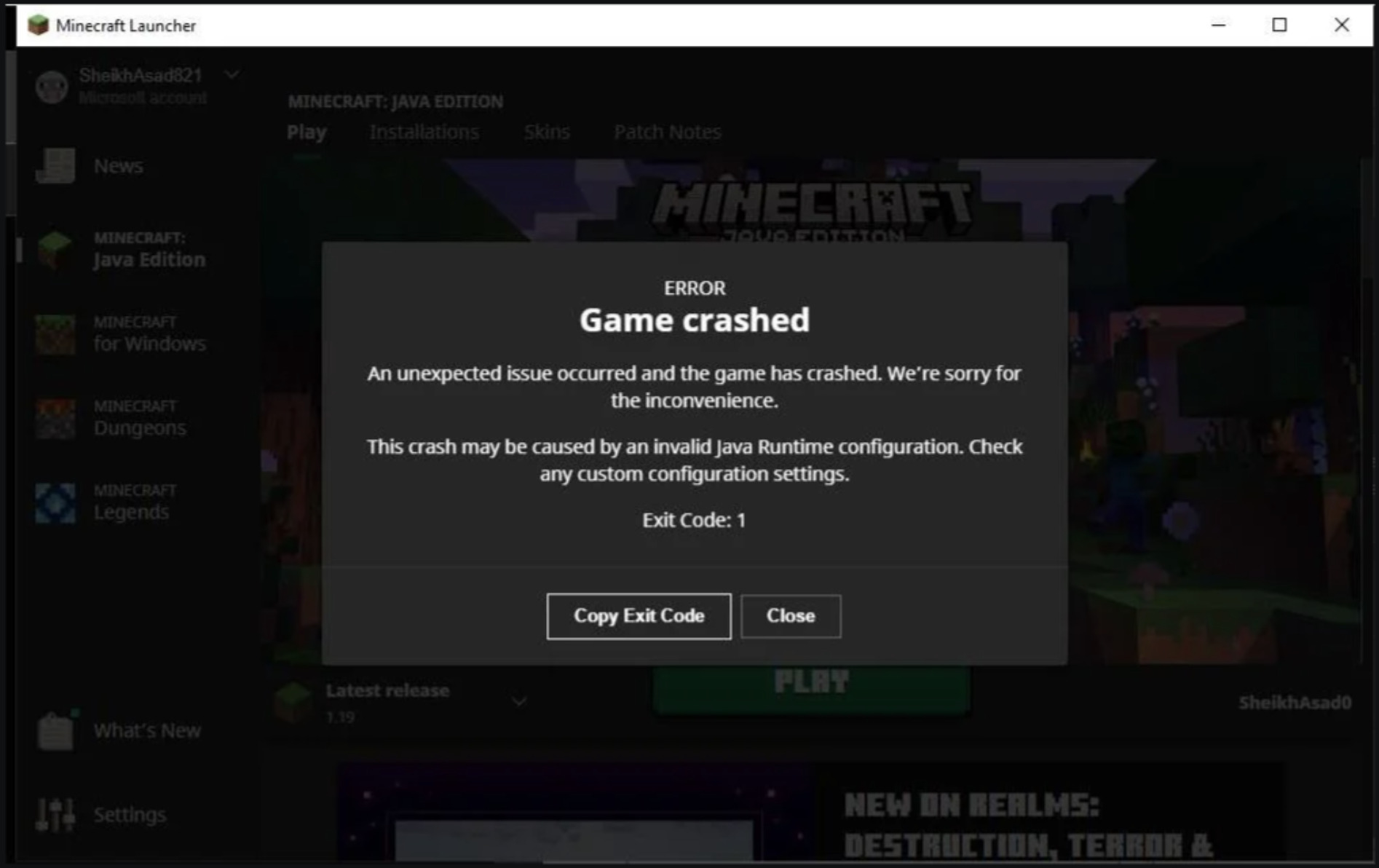
Minecraft is all fun and games... until your world suddenly closes and the screen spits out that dreaded message: Minecraft exited with Exit Code 1. Whether you're deep in your first survival base or fighting the Ender Dragon with your friends, this error can instantly ruin your day.
But don't worry -- in this guide, we'll break down what is Exit Code 1 Minecraft, what causes it, and exactly how to fix it so you can get back to building, mining, and exploring!
What Is Exit Code 1 in Minecraft?
Exit Code 1 in Minecraft is a generic error code that tells you the game crashed unexpectedly. It doesn't give a clear reason on its own -- kind of like when your PC blue screens without explanation -- but there are common culprits:
-
Bad or incompatible mods (especially if they don't match your Minecraft version).
-
Outdated or corrupted Java installation (Java is essential for Minecraft Java Edition).
-
Graphics driver issues (missing, outdated, or incompatible GPU drivers).
-
Corrupted game files or broken Minecraft installation.
-
Special characters in your Windows username, which can mess with the Minecraft Launcher path.
You'll often see this error called:
-
minecraft exit code 1
-
minecraft crash exit code 1
-
minecraft error code 1
-
mc exit code 1
...and it all means the same thing: something's crashing Minecraft before it can run.
Why Does Minecraft Crash with Exit Code 1?
Let's dig deeper into the most common causes of exit code 1 Minecraft crashes:
1. Incompatible Mods
Mods are awesome, but using a mod made for Minecraft 1.19.2 on Minecraft 1.20.6? Instant chaos. Always match your mods' versions with your Minecraft version.
2. Outdated Java
Minecraft Java Edition runs on Java -- but if Java is outdated, corrupted, or missing, you'll get errors like exit code 1.
3. GPU Driver Issues
If your graphics card drivers are old, Minecraft might fail to start or crash soon after launch.
4. Incorrect Launcher or Java Paths
A corrupted Minecraft installation or a username with weird symbols (like ! or #) can cause the launcher to fail to find important files.
How to Fix Minecraft Exit Code 1: Step-by-Step Solutions
Below are proven methods that fix minecraft crash code 1 for thousands of players -- try them in order:
1. Update or Reinstall Java
Minecraft Java Edition literally won't run without Java. Here's how to check and update it:
- Uninstall your current Java version:
- Open Start > type Add or Remove Programs > find Java > uninstall.
-
Download the latest Java 17 from the official Java site.
-
Install it, then restart your computer.
This simple fix solves minecraft exit code 1 for many players!
2. Match Your Mods to Your Minecraft Version
Misaligned mods are the most common reason for error code 1 Minecraft.
-
Go to your Minecraft installation folder: C:\Users[YourName]\AppData\Roaming.minecraft\mods
-
Check mod version numbers: they should match your Minecraft version exactly.
-
If unsure, disable all mods by moving them out of the folder. Restart Minecraft -- if it works, re-add mods one by one until you find the culprit.
3. Update Your Graphics Driver
Old GPU drivers can cause crashes, black screens, and yes -- minecraft crash exit code 1. Here's how to update them:
-
Open Start > type Device Manager.
-
Expand Display adapters.
-
Right-click your GPU > Update driver > Search automatically.
Or download the latest drivers directly from your GPU maker's website (NVIDIA, AMD, Intel).
4. Change the Minecraft Launcher Path
Your Minecraft Launcher might fail if your Windows username has special characters.
Fix it by adding a work directory:
-
Right-click the Minecraft Launcher icon on your desktop > Properties.
-
Go to the Shortcut tab > Target box.
-
Add at the end of the path: -workDir %ProgramData%.minecraft
-
Click Apply > OK.
This helps many players eliminate mc exit code 1 issues instantly.
5. Reinstall Minecraft
If nothing else works, your Minecraft installation might be corrupted.
Important: Back up your saves first!
-
Open %appdata%.minecraft
-
Copy the saves folder to a safe location.
Then:
-
Open Start > Add or Remove Programs > uninstall Minecraft.
-
Download and reinstall Minecraft from minecraft.net.
-
Move your saves folder back into .minecraft.
Advanced Fixes for Minecraft Exit Code 1
Allocate More RAM
Not enough RAM can sometimes cause Minecraft to crash with exit code 1. In the launcher:
- Go to Installations > select your profile > More Options > change -Xmx2G (2GB) to -Xmx4G (4GB) or more if you have the spare RAM.
Check Logs for Detailed Errors
Your crash logs might tell you exactly what mod or file caused the error:
-
Go to .minecraft\logs\latest.log
-
Search for lines mentioning ERROR or Exception.
This can point you directly to the faulty mod or config.
FAQ: Everything You Need to Know About Exit Code 1
What does exit code 1 mean Minecraft?
Your game crashed due to a general error, usually from mods, Java, or drivers.
Can exit code 1 happen without mods?
Yes -- outdated Java or corrupted game files can cause minecraft exit code 1 even in vanilla.
Does reinstalling Minecraft always fix it?
It often does if the issue is corrupted files, but not if the root cause is outdated drivers or a bad Java setup.
Back to Crafting Without Crashing
The Minecraft Exit Code 1 error can be super frustrating -- but don't let it end your adventures. By updating your mods, fixing Java, checking drivers, and trying the steps above, you'll squash minecraft error code 1 once and for all!
- The Best Mace Enchantments in Minecraft: Ultimate 1.21 Guide
- 10 Minecraft Barn Ideas That Will Level Up Your Survival Base
- Minecraft Chase the Skies Update: Everything You Need to Know About the Sky-High Adventure