
How to Add Mods to Your Project Zomboid Server
Mods are a fantastic way to personalize your Project Zomboid server and give it a unique feel. PingRite servers fully support Steam Workshop mods for Project Zomboid, making installation straightforward.
How to Install Mods on Your Server
Before adding mods to your server, you'll need to gather two pieces of information for each mod: the Workshop ID and the Mod ID.
- Log into your server control panel and Stop your server.
- Go to File Manager tab and navigate to `/.cache/Server/` and open the `.ini` file with your server name.
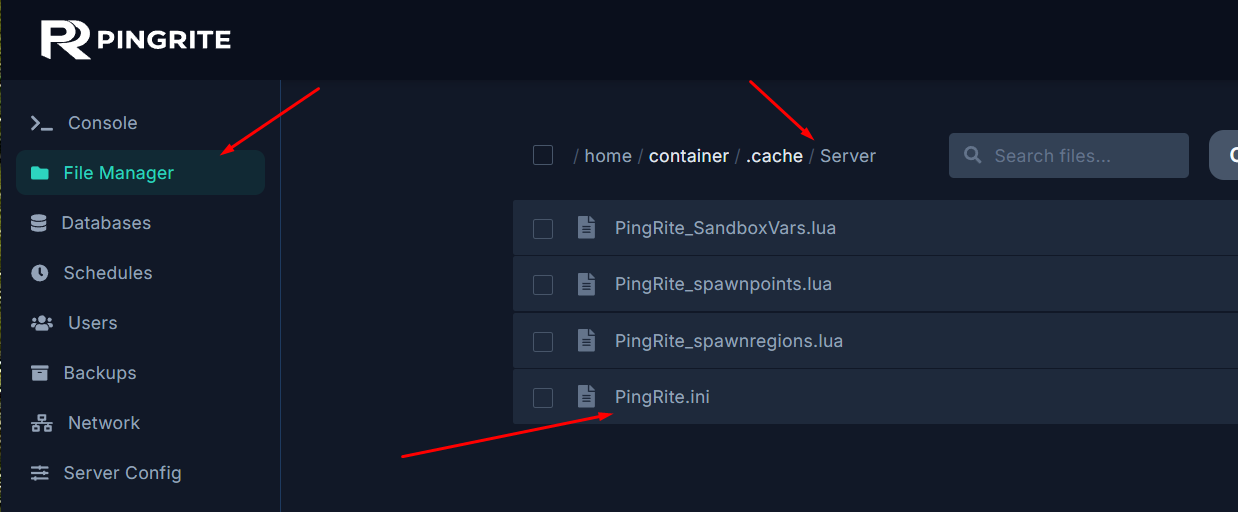
- Find the Workshop Items field and enter your mod Workshop IDs, using semicolons to separate each one.
- Find the Mods field and enter the corresponding Mod IDs, also separated by semicolons.
- Hit Save, then Start your server.
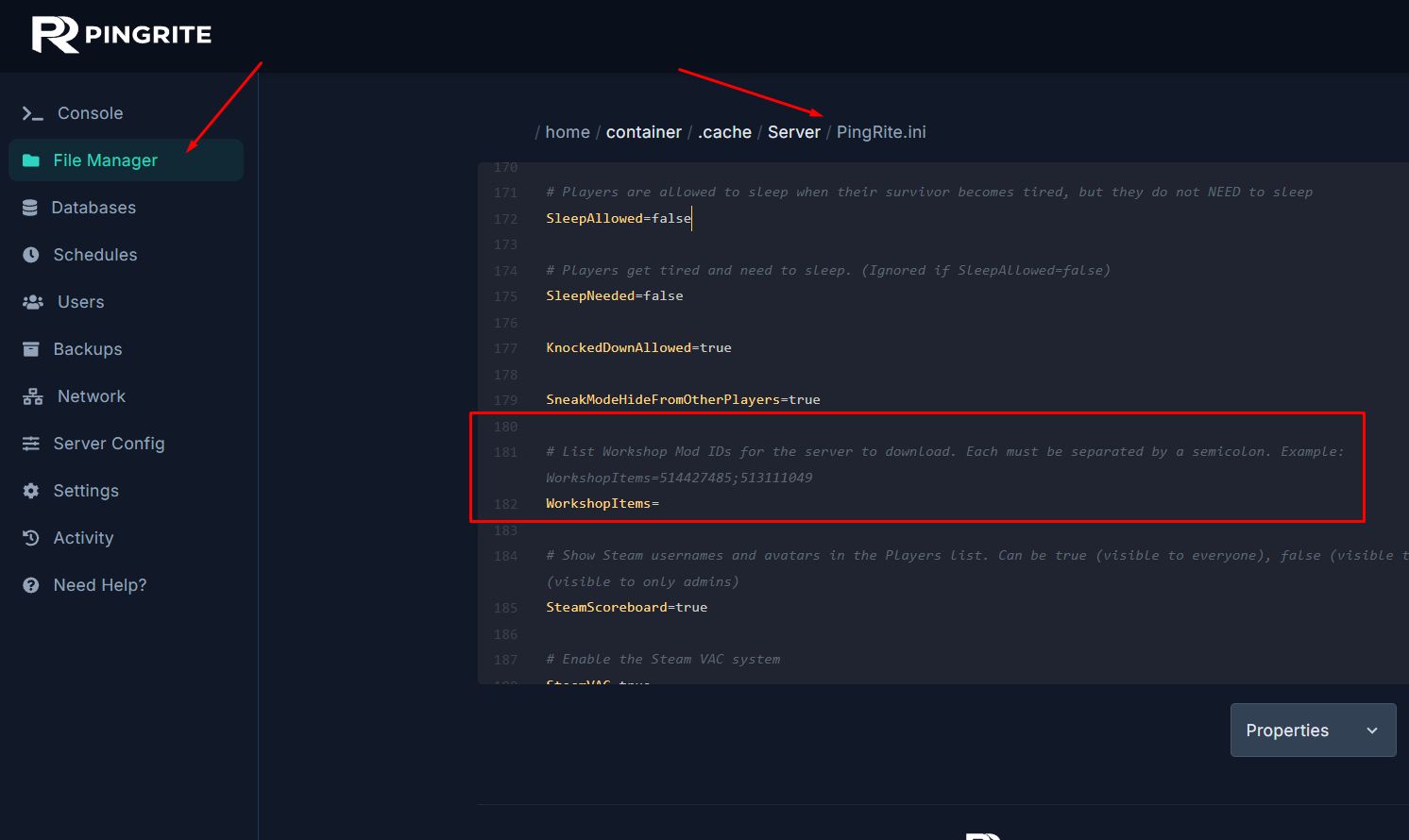
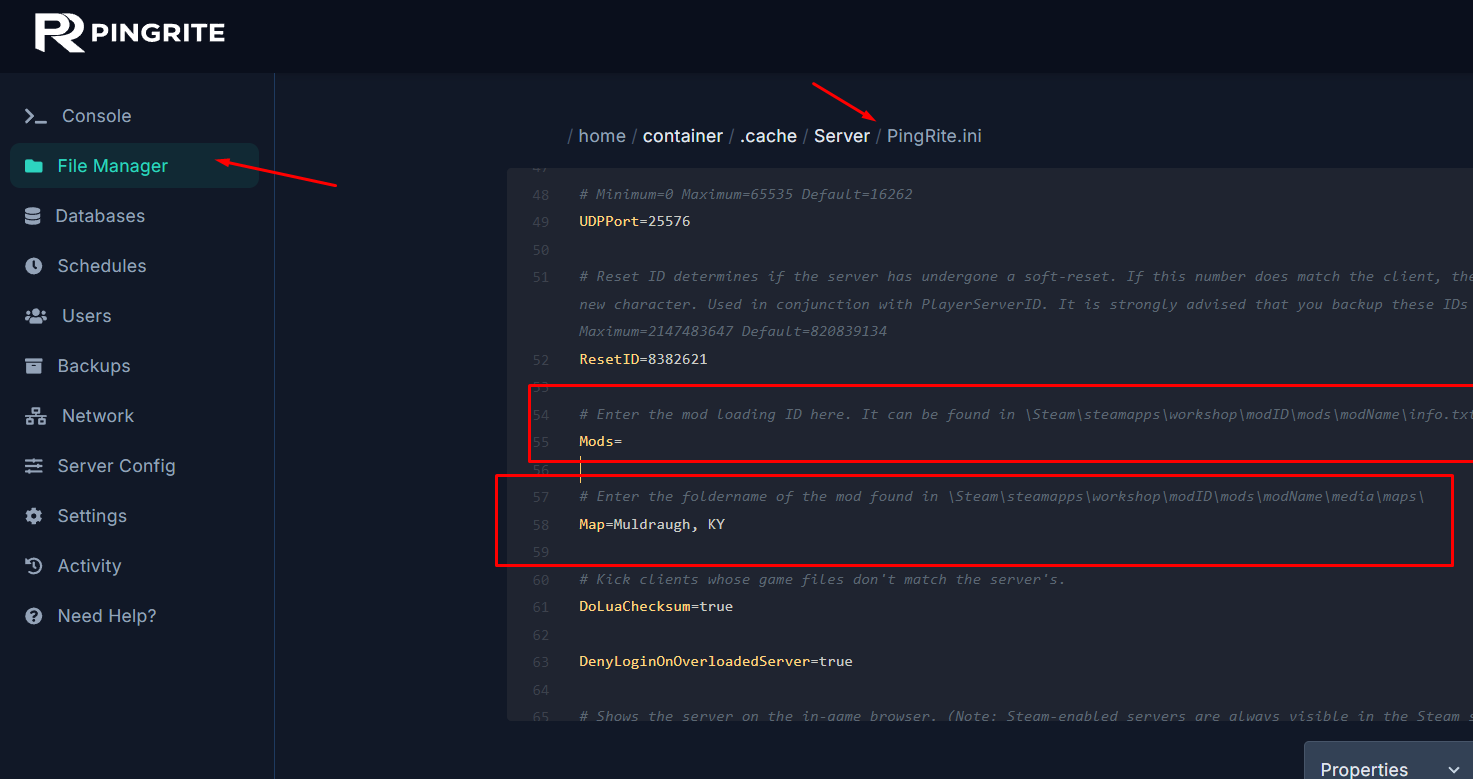
Your mods are now installed on the server. If you need to set up map mods, continue to the section below.
Enabling Map Mods
Note: Before proceeding, make sure any map mods have already been added to both the Workshop Items and Mods fields as described above.
- Open your server control panel and Stop the server.
- Head to File Manager tab and open the server `.ini` file like described above.
- Locate the Map option as shown in the image above.
- Visit the Steam Workshop page for your map mod and locate the Map Folder value — it's typically listed near the bottom of the description.
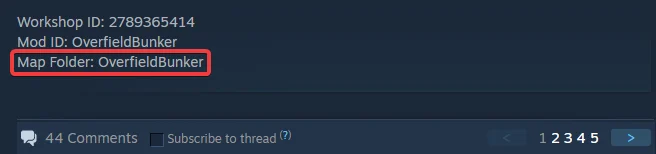
- Save the configuration and Start your server.
Your server should now load the custom map. Follow the next section to install the same map mod on your local game client.
How to Install Mods Locally
Note: The same mods must be installed on both the server and your local client in order to connect.
- Browse the Project Zomboid Workshop page, find your mod, and click Subscribe.
- Open a file explorer window and navigate to
User > Zomboid > Mods. - In another file explorer window, go to
C:\Program Files (x86)\Steam\steamapps\workshop\content\108600(or the equivalent path on your OS). - Open the folder matching the Workshop ID of the mod you subscribed to.
- Copy the subfolder named after the Mod ID into the Zomboid Mods folder you opened earlier.


- Launch Project Zomboid and click Mods from the main menu.
- Find the mod in the list on the left side and click Enable.
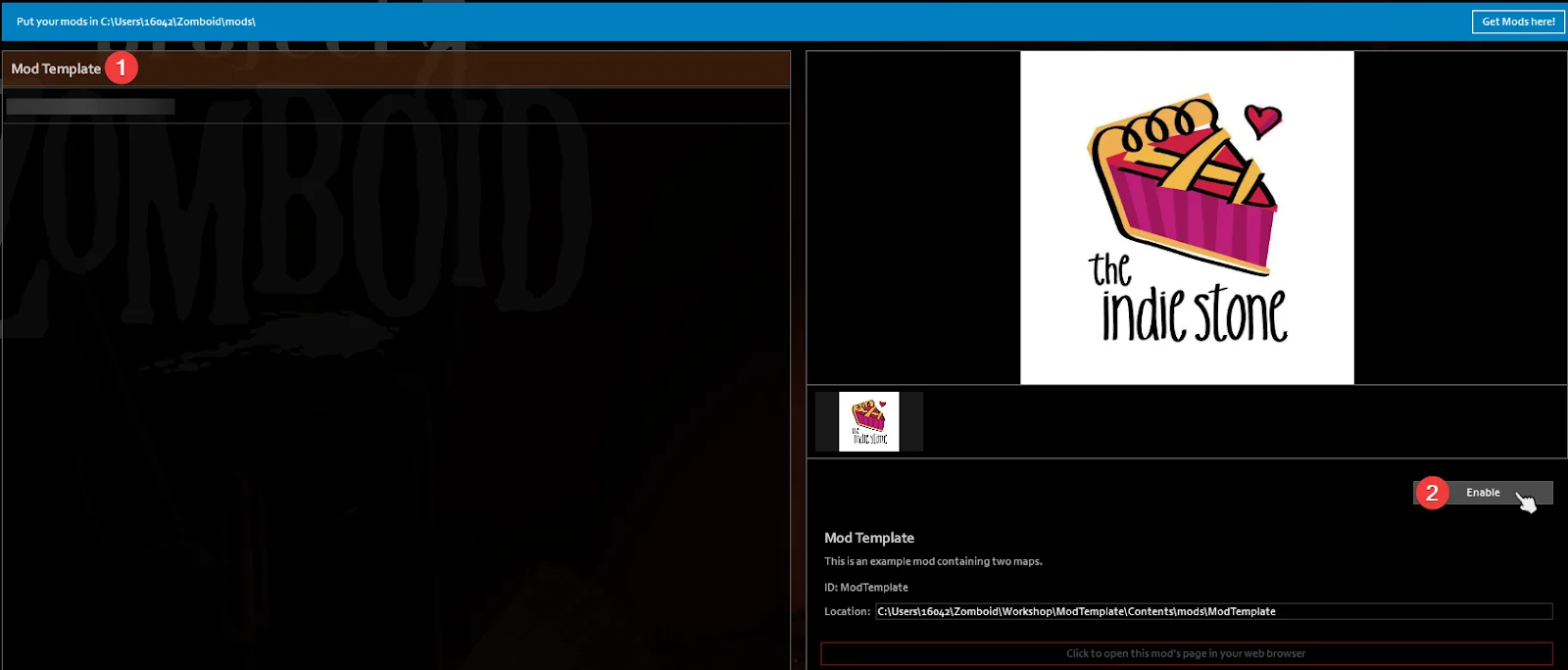
You're all set — you can now join your modded server!