
How to Become an Admin on Your Project Zomboid Server
Giving a player Admin access on your Project Zomboid server lets them run administrative commands in-game, including banning, muting, and kicking other players.
You can find a complete list of available commands on the Project Zomboid Wiki.
Joining with the Admin Account
To assign roles to other players, you first need to connect to the server using the built-in admin account.
- Sign in to your server control panel and stop the server.
- From the left sidebar, navigate to Server Config.
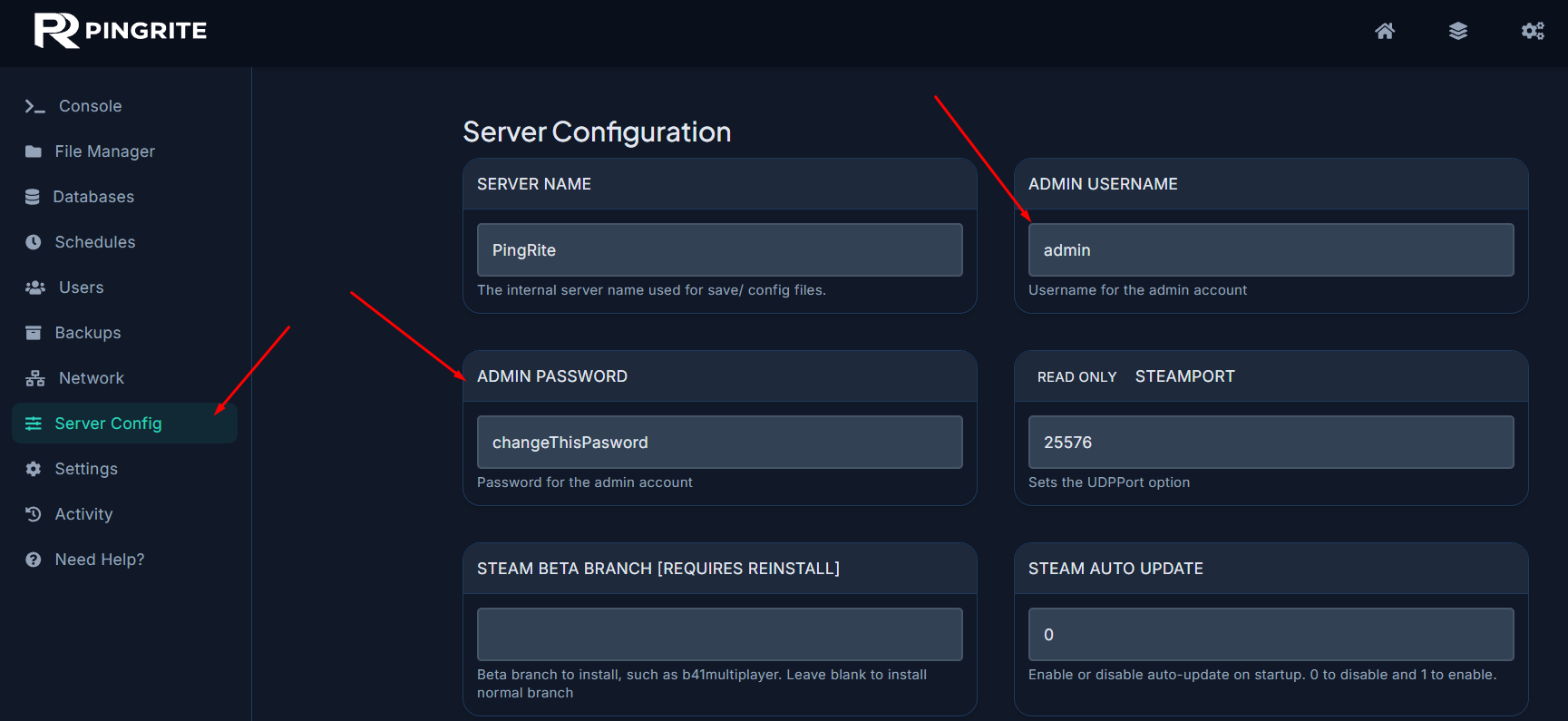
- Set an Admin Password and Admin Username as shown in the image above.
- Add the server to your Favorites using the Admin Username you chose as the Account Name and the password you just set as the Account Password.
Once you connect, you'll have full admin privileges on the server.
Available Admin Levels for Project Zomboid
Project Zomboid dedicated servers support several access levels that can be assigned to players. Each tier grants a different set of commands, with admin providing the most comprehensive control.
- admin
- moderator
- overseer
- gm
- observer
Adding an Admin Using the Console
Follow these steps to grant another player an admin level through the server console.
- Open the Console tab in your server control panel.
- Type the command
SetAccessLevel <username> <level>. To revoke someone's access level, usenoneas the level. - Press Enter to execute it. A confirmation message will appear in the console verifying the player's new access level.
That's it — your admin team is ready to go! For further server customization, take a look at our guide on how to adjust your Project Zomboid server settings.