
How to Change Your 7 Days to Die Server Settings
Updated September 24, 2026
One great thing about owning a 7 Days to Die server is the ability to make your own modifications to it.
7 Days to Die features a vast amount of settings that allow you to customize your server exactly to your liking. This can help bring a unique feel to your server, letting it stand out against the rest!
Editing the Configuration File with the Config Editor
You can configure your 7 Days to Die server settings file with the configuration editor in your server control panel.
-
Open your server control panel.
-
Navigate to the Server Config tab.
-
Locate and set your desired settings. For example, set
GameDifficultyto 0.
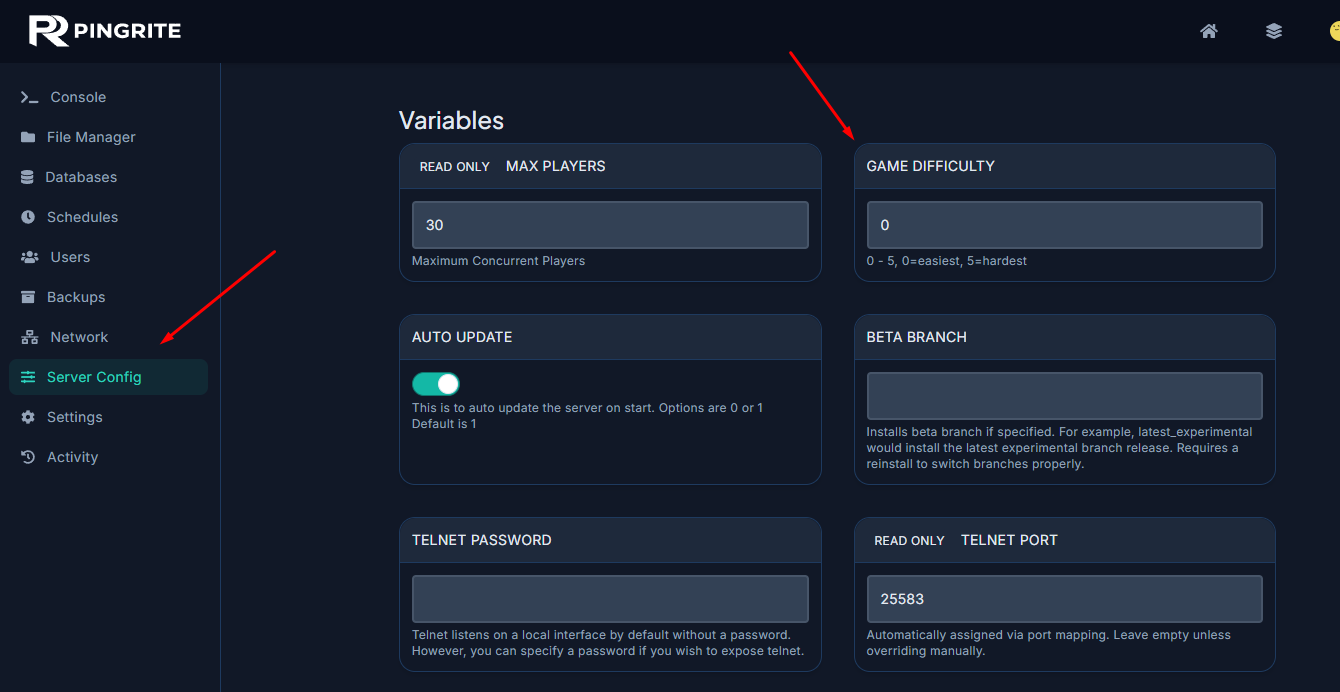
- Save the file and restart your server.
Manually Editing the Configuration File
You can also change your 7 Days to Die server settings by editing the serverconfig.xml file manually.
-
Open your server control panel.
-
Navigate to the File Manager tab.
- Find and open the
serverconfig.xmlfile.
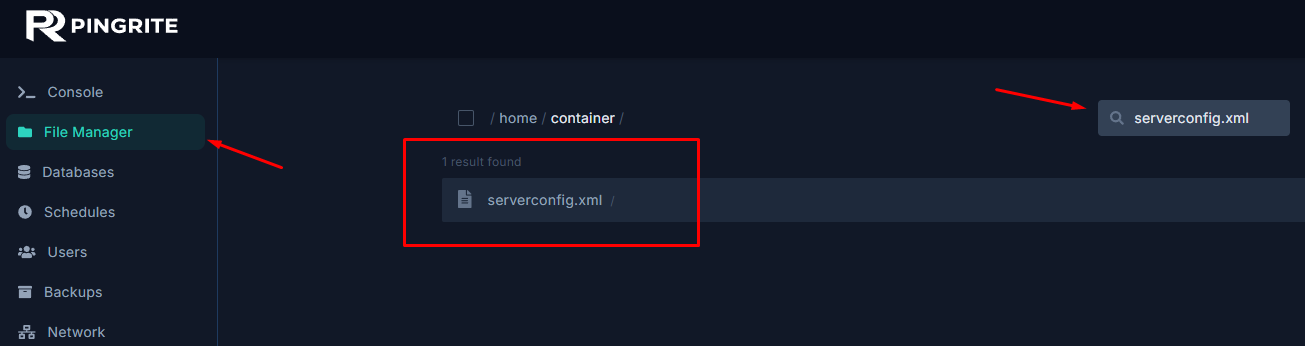
- Locate and set your desired setting. For example, set
EnemyDifficultyto 0 orGameDifficultyto 0. - Save the file and restart your server.