
How to Change your Minecraft Server Version
PingRite's game panel lets you change your Minecraft server version and server type (Vanilla, Paper, Fabric, Forge, and more) directly from the control panel. Whether you need to upgrade to a new release or switch to a different server fork, the Versions tab handles it all.
Important: Mods and plugins are built for specific server types and Minecraft versions. Before changing your server version, check that your mods or plugins are compatible with the version you're switching to. Mismatched versions will cause crashes or errors.
Understanding Server Types
Minecraft servers come in different types, often called "forks." Each type serves a different purpose:
- Vanilla — The official Minecraft server software from Mojang. No mod or plugin support.
- Paper — A high-performance fork with plugin support (uses Bukkit/Spigot plugins). Recommended for most plugin-based servers.
- Spigot — The original plugin-supporting fork. Paper is generally preferred due to better performance.
- Fabric — A lightweight modding framework. Most modern modpacks use Fabric.
- Forge — The classic modding framework. Still used by many established modpacks.
- NeoForge — A community fork of Forge with active development.
- Sponge — A modding platform that supports its own plugin ecosystem.
Make sure to choose the type that matches your mods, plugins, or modpack requirements.
Changing Your Server Version
- Open your server's control panel and go to the Versions tab in the Minecraft management bar.
- Your current server type and version will be displayed at the top of the page.
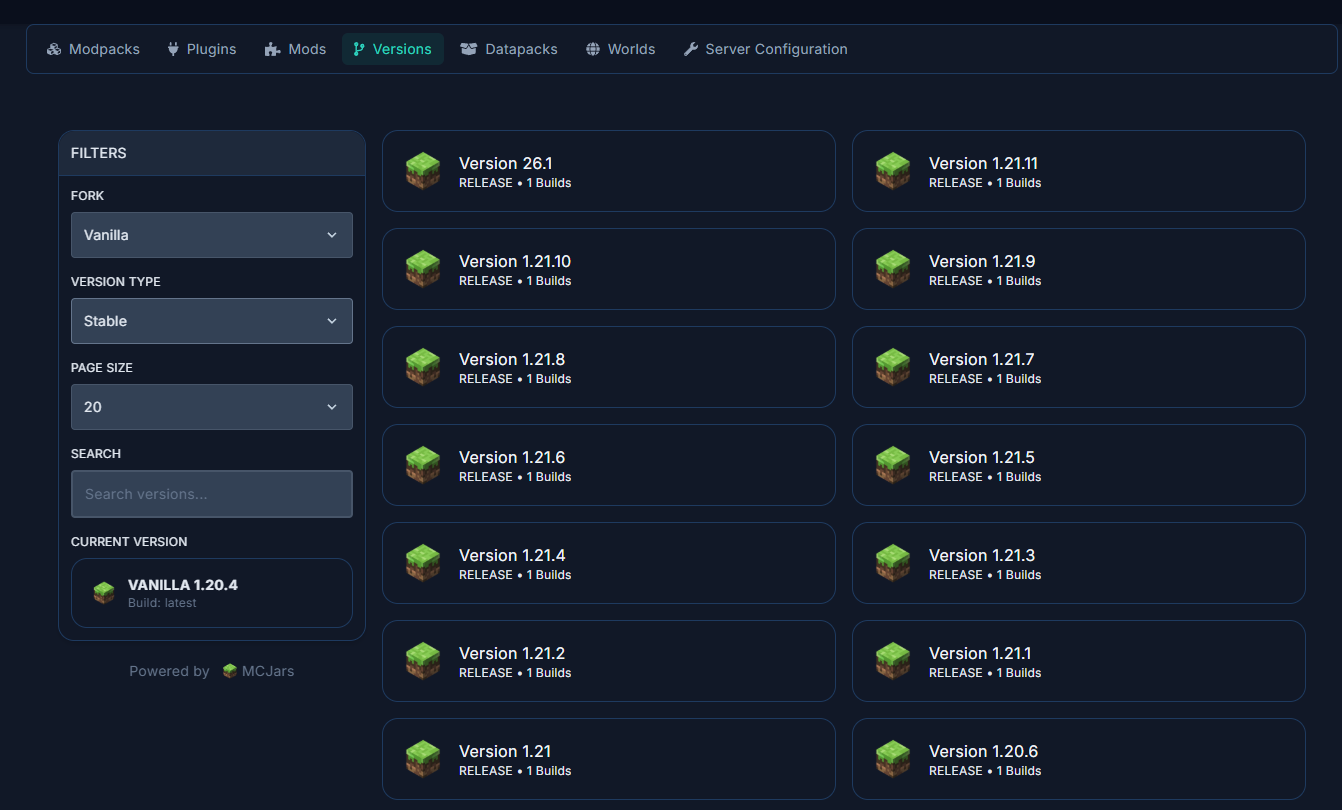
- Browse the available server types. Each one shows a description and the number of available versions.
- Click on the server type you want to use (e.g., Paper, Fabric, Forge).
- Select the Minecraft version you need from the list (e.g., 1.21.1, 1.20.4).
- Choose a specific build or use the latest available build.
- Optionally check Delete existing files if you want a clean install. This will remove all current server files including your world.
- Optionally check Accept EULA to automatically agree to Mojang's End User License Agreement.
- Click Install to begin the process.
The panel will download and install the selected server jar. Once complete, start your server from the Console tab.
Java Version Requirements
Different Minecraft versions require different Java versions. If your server fails to start after a version change, the panel will automatically detect the issue and prompt you to select the correct Java version.
- Minecraft 1.16 and below: Java 8 or Java 11
- Minecraft 1.17: Java 16 or above
- Minecraft 1.18–1.20.4: Java 17 or above
- Minecraft 1.20.5+: Java 21 or above
When the "Unsupported Java Version" dialog appears, select the appropriate version from the dropdown and click Update Server Image. The server will restart with the correct Java version.
Tips for Version Changes
- Always back up first. Use the Backups tab before making any version changes. Downgrading a world that has been loaded on a newer version can cause corruption.
- Check mod/plugin compatibility. If you're running mods or plugins, verify they support the version you're switching to. Most mod and plugin pages list supported versions.
- Switching server types clears libraries. When changing between types (e.g., Paper to Fabric), the old server libraries are removed to prevent conflicts.
- Worlds are generally forward-compatible. You can usually upgrade a world to a newer Minecraft version, but downgrading is not supported and may corrupt your world.