
How to Install Mods on Your Satisfactory Server
Updated September 24, 2026
Mods let you extend your Satisfactory server with new features, mechanics, and quality-of-life improvements.
This guide walks through using the Satisfactory Mod Manager to get mods running on your server.
Installing the Satisfactory Mod Manager
The Satisfactory Mod Manager streamlines the entire process — it handles mod installation, dependencies, and the Mod Loader (SML) automatically.
- Download the Satisfactory Mod Manager from https://smm.ficsit.app/
- Run the .exe file and follow the on-screen instructions to complete the installation.
Adding Your Server to the Satisfactory Mod Manager
With the Mod Manager installed, the next step is connecting it to your server.
- Open your server control panel.
- Navigate to the
Settingstab. - Take note of your connection details. The password is the same as your panel account password.
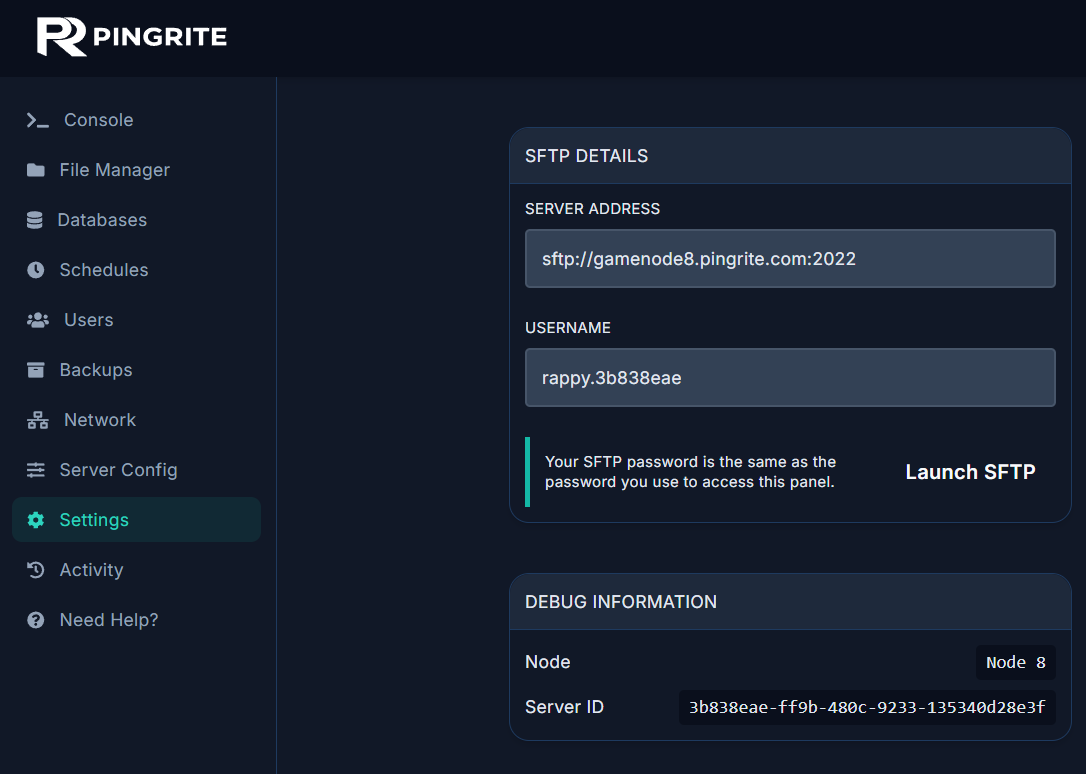
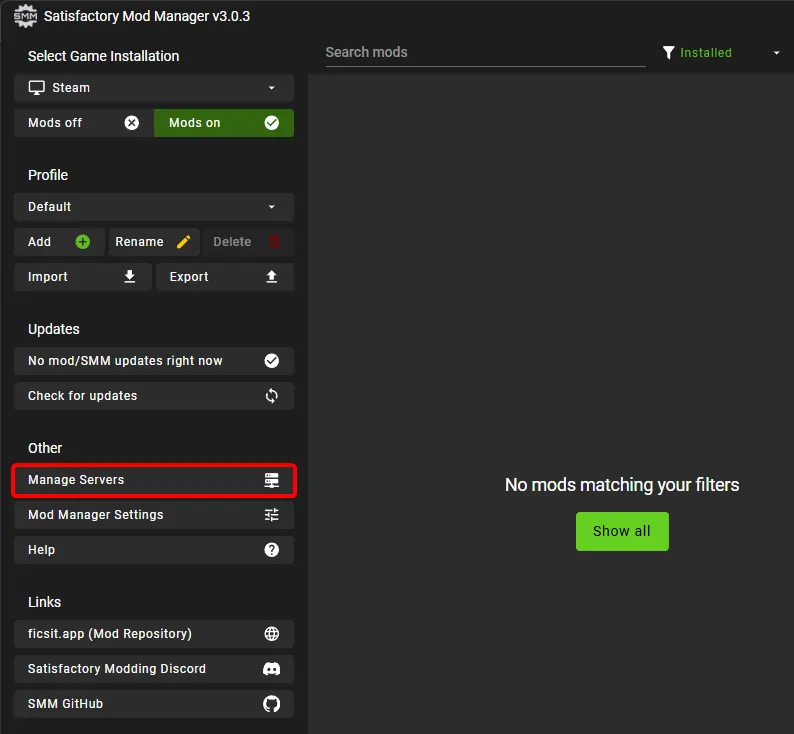
- Open the Satisfactory Mod Manager.
- Click Manage Servers.
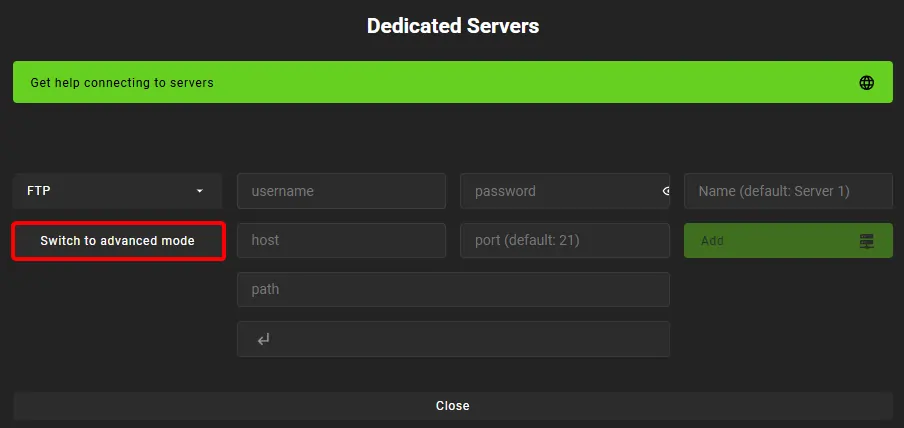
- Switch the Manage Server menu to advanced mode.
- Set the connection mode to SFTP and enter the connection string in this format:
<username>:<password>@<host>:<port>/Important: The "/" at the end is required — make sure it is included.
john.doe@email.com:MySecurePassword@sftp.example.com:2222/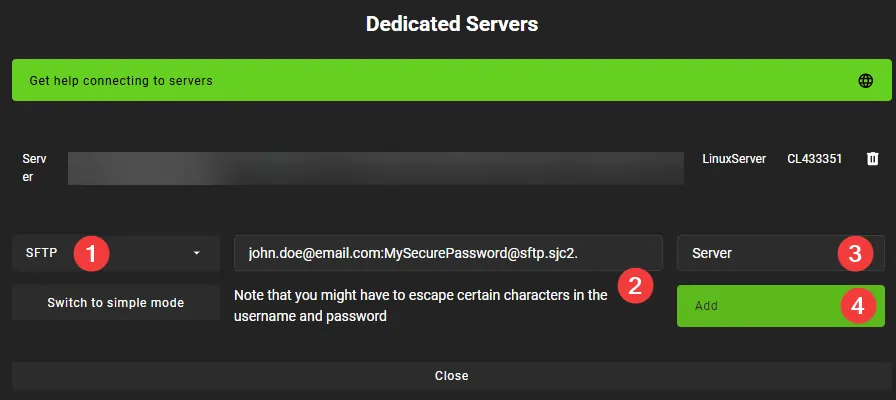
Your server is now linked to the Satisfactory Mod Manager.
Installing a Mod on Your Server
Now that your server is connected, you can start installing mods directly through the manager.
- Select your server as the active Game Installation.
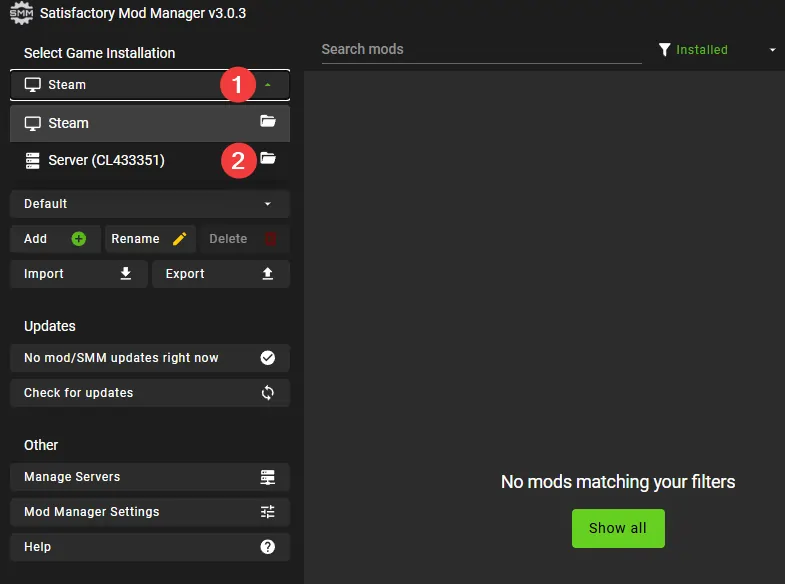
- Browse for the mod you want and start the download.
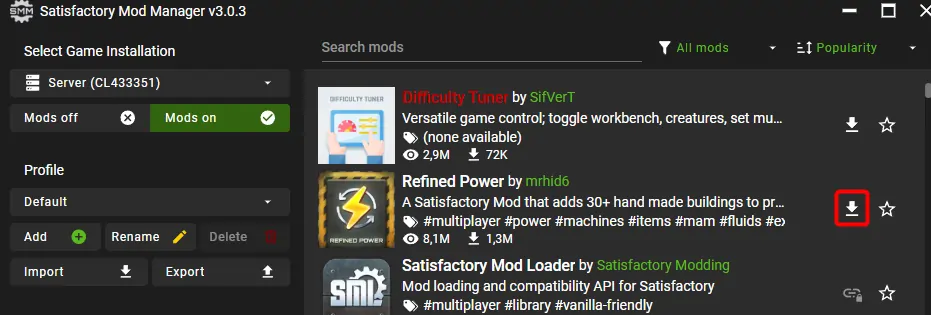
- Wait for the mod to finish downloading to your server.
- Restart your server so the mod gets loaded.
The mod is now installed and active on your server.