
How to Install Plugins and Mods on your Counter Strike 2 Community Server
Updated September 24, 2026
Plugins let you add new features, automation, and custom gameplay mechanics to your CS2 server. Plugin support is powered by CounterStrikeSharp and Metamod, both of which can be enabled directly from your control panel.
Enabling Plugin Support
You'll need to enable Metamod and CounterStrikeSharp before you can install any plugins:
- Open your server control panel and stop your server.
- Go to the
Server Configtab. - Set to
truethe MetaMod:Source and CounterStrikeSharp options. - Save your changes and start the server.
On the next startup, your server will automatically download and configure all required files for plugin support.
Installing a Plugin
With plugin support active, you can install any compatible CounterStrikeSharp plugin:
- Open the
File Managertab in your control panel. - Navigate to:
/game/csgo/addons/counterstrikesharp/plugins - Upload your plugin folder into this directory.
As an example, here's how to install the Auto Map Changer plugin:
- Head to the plugin's GitHub page: https://github.com/skaen/Auto-Map-Changer
- Go to the Releases section and download the latest version.
- Upload the
AutoChangeMapfolder to:/game/csgo/addons/counterstrikesharp/plugins

- Restart your server to load the plugin.
Verifying Plugin Installation
To check that your plugin loaded correctly, open the server console and run: css_plugins list
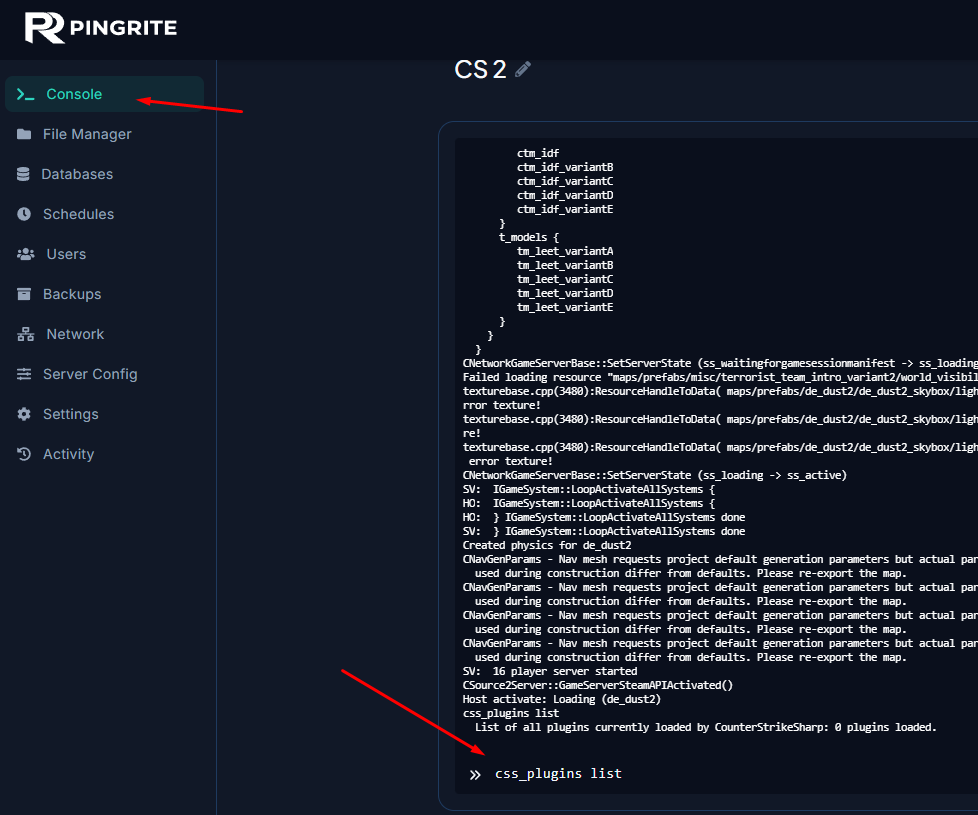
This will display all currently active plugins on your server.