
How to setup a database for your FiveM server
Updated September 24, 2026
Some FiveM server templates require a database connection for storing persistent data. This guide walks you through creating a database and entering the connection details in txAdmin.
Note: This article is part of our FiveM setup series. If you need help with the initial server configuration or don't see the database input fields, check out our getting started guide first.
Creating Your Database
- Open your server control panel.
- Go to the Databases section.
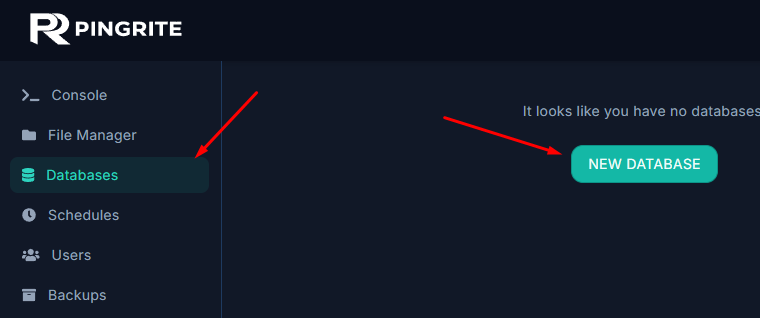
- Click New Database.
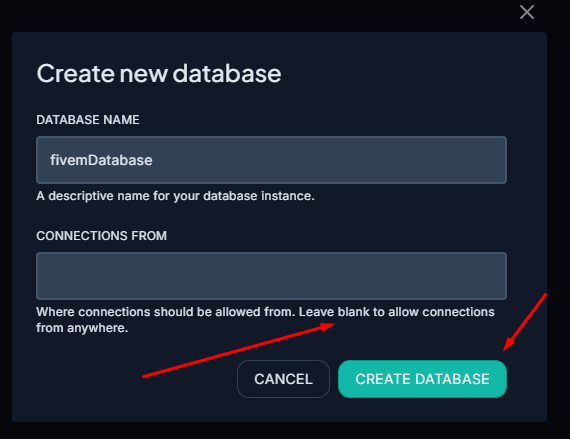
- Choose a name for the database and click Create Database.
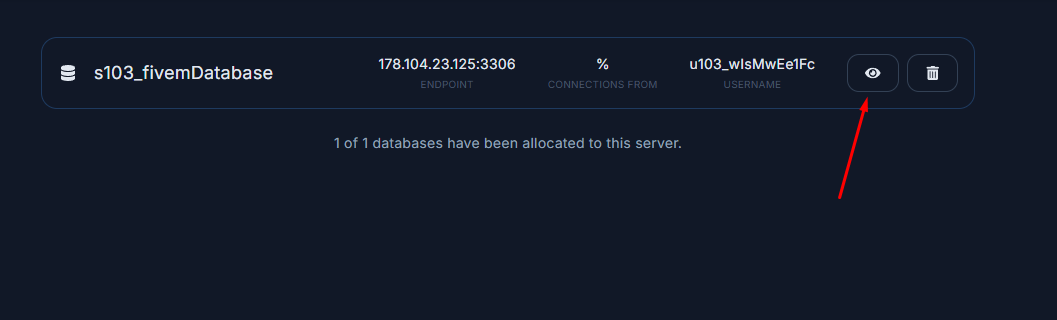
- Make a note of the database name, then click the Eye icon.
Entering Your Database Connection Details
Note: If the option to enter connection details isn't visible, your chosen template may not need a database. See our Getting started with your FiveM server guide for more details.
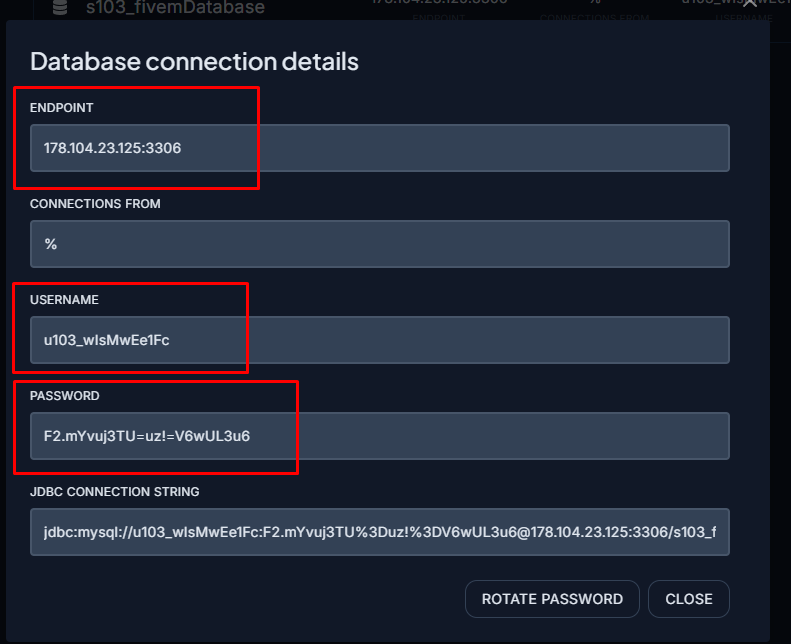
- Click Show/Hide Database Options (advanced) during the txAdmin setup process.
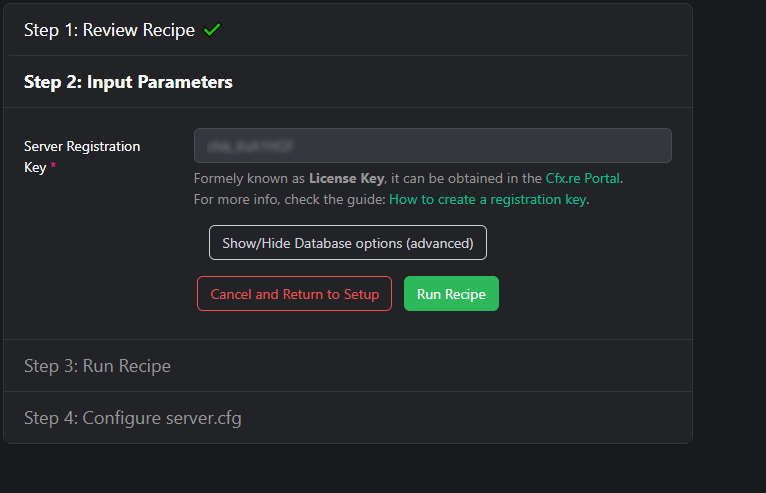
- Fill in the connection details from your newly created database and run the recipe.
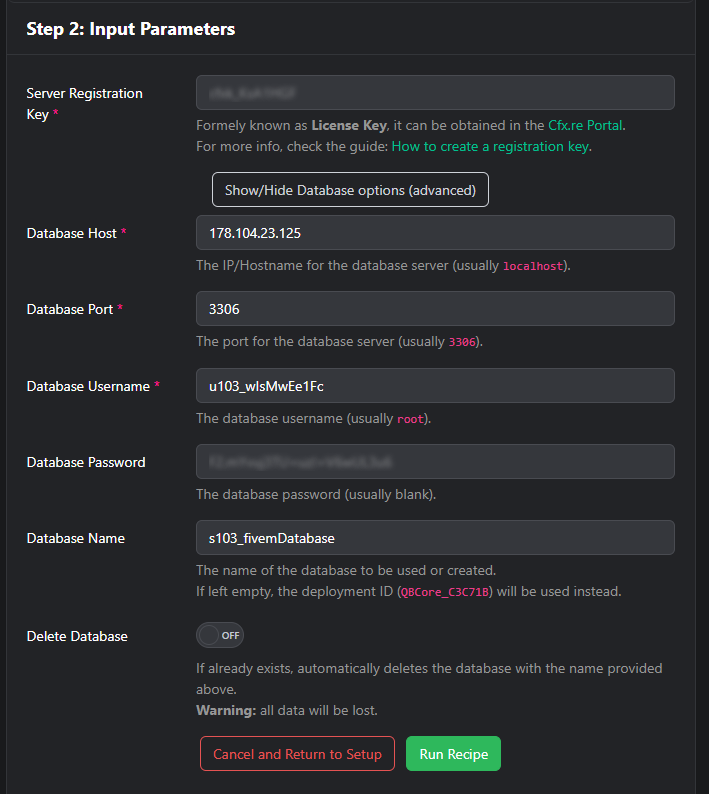
With the database successfully connected, you can continue configuring your server by following our Getting started guide.