
How To Upload An Existing Save To Your Enshrouded Server
Updated September 24, 2026
If you've been playing on a local Enshrouded world or had a save on a different server, you can transfer it to your new PingRite server and pick up right where you left off.
Locating Local Enshrouded World Files
If you don't already have your local world files ready, you'll need to track them down first.
- Open your Steam library, right-click Enshrouded, and select Manage > Browse Local Game Files.
- Navigate back up to the Steam folder.
- Go to
userdata > (Your SteamID3) > 1203620 > Remote. - Sort the folder by "Date Modified" to identify which world was most recently played.
- Keep these files accessible — you'll need both the world file and the world_info file for the next steps.
Uploading an Existing Enshrouded World
With your world files in hand, the process involves backing up the current server world, uploading your files, and matching the names so the server loads your save.
- Open your server control panel and Stop the server.
- Go to the
File Managertab. - Open the
savegamefolder.
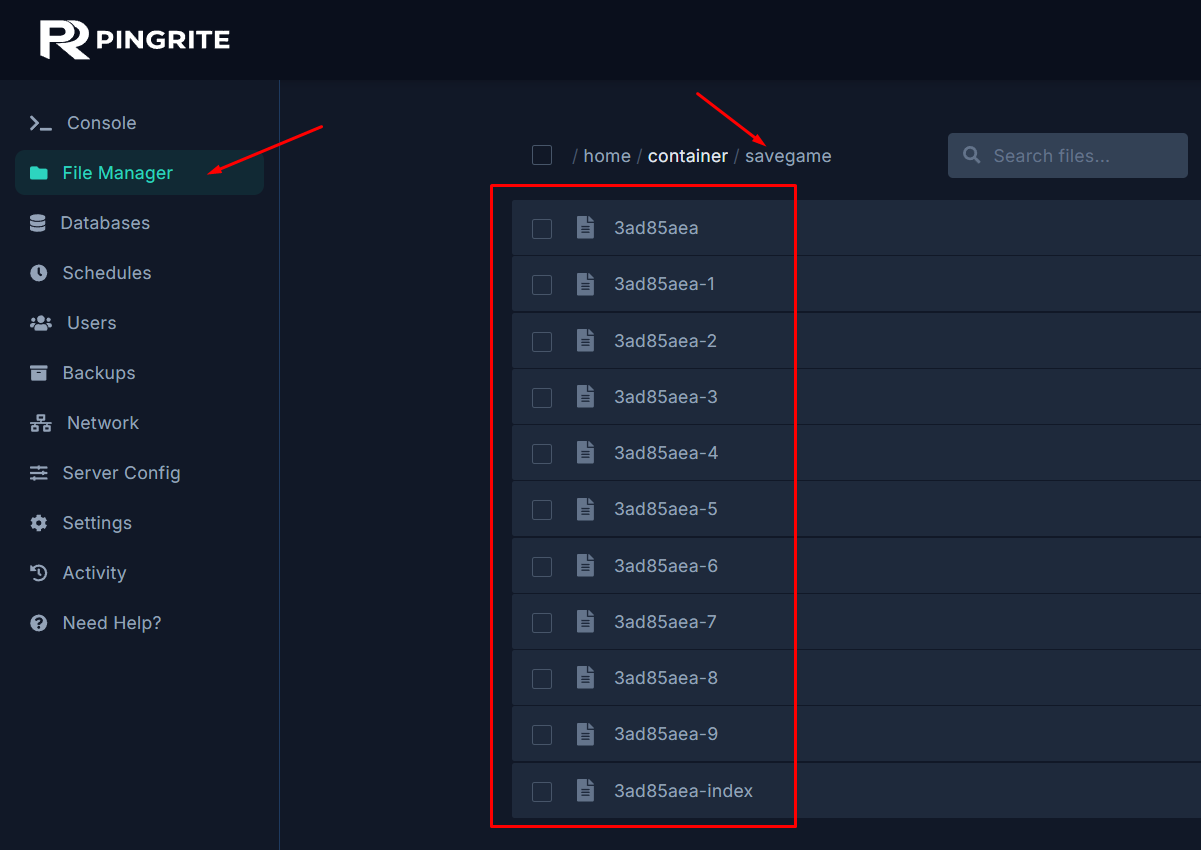
- Rename the existing world files by appending
(OLD)to their names as a backup. - Upload your local
worldfile andworld_infofile into this folder. - Rename the uploaded files to match the original world file names exactly.
- Start your server.
Once the server finishes booting, it will automatically load your uploaded world save.