
How to use FTP for File Management with Your Game Servers
An FTP client is a useful tool for managing the files on your game server. It makes uploading, downloading, and organizing files straightforward — especially when working with large files like world saves or mod packs.
How to Connect to Your Server via FTP
You can connect to your server's file directory using any FTP client, such as FileZilla or WinSCP. Make sure you have one installed on your computer before proceeding.
- Log in to your server control panel.
- Click the Settings tab on the left sidebar.
- Click the Launch SFTP button.
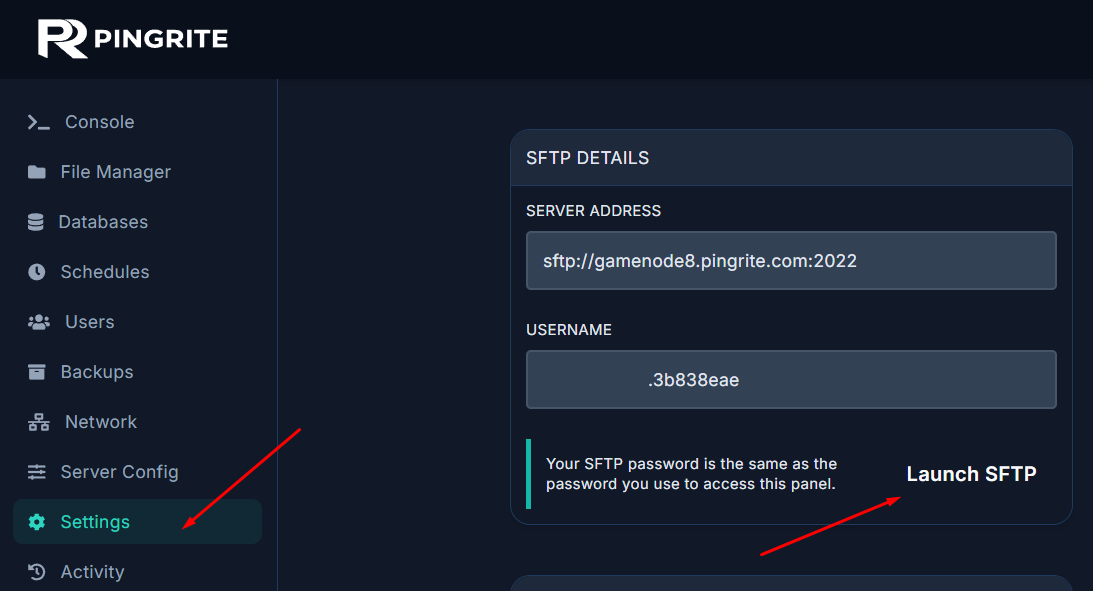
If an FTP client is already installed on your computer, a dialog prompt will appear in your browser asking which application to use. Accept the prompt, and your FTP client will open automatically with the connection details pre-filled. The only thing you need to enter is your password — this is the same password you use to log in to the control panel.
Once connected, you will see your server's file directory on the remote side of the FTP client. From here you can upload, download, rename, and delete files as needed.
Troubleshooting
If you run into connection errors, double-check that your panel password is correct. You can reset your password from your control panel's account settings. If issues persist, make sure your FTP client supports SFTP connections and that no firewall is blocking the connection on your end.