
How to Install a Modpack on your Minecraft Server
Modpacks bundle dozens (or even hundreds) of mods together into a single package, giving you a ready-made modded experience. PingRite's game panel includes a built-in modpack installer that handles everything for you — no manual file uploads required.
Important: Modpacks are designed for specific Minecraft versions and server types (Fabric, Forge, etc.). Before installing, check the modpack's page to confirm which Minecraft version and server type it requires. Installing a modpack on the wrong version will cause errors.
Before You Begin
There are a few things to keep in mind before installing a modpack:
- Check the required Minecraft version. Each modpack targets a specific version (e.g., 1.21.1, 1.20.4). You'll need to match this on both the server and your client.
- Check the required server type. Most modpacks require either Fabric or Forge. The modpack's page will tell you which one. If you're unsure, Fabric is the most common for newer modpacks.
- Your client needs the modpack too. Modded servers require the same mods on the client side. You'll need to install the modpack in a launcher like CurseForge, Modrinth, or Prism Launcher before connecting.
- Back up your server first. Installing a modpack can overwrite existing files. Use the Backups tab to create a backup before proceeding.
Installing a Modpack
- Open your server's control panel and navigate to the Modpacks tab in the Minecraft management bar.
- Choose a provider at the top: CurseForge, Modrinth, or FTB.
- Find the modpack you want to install.
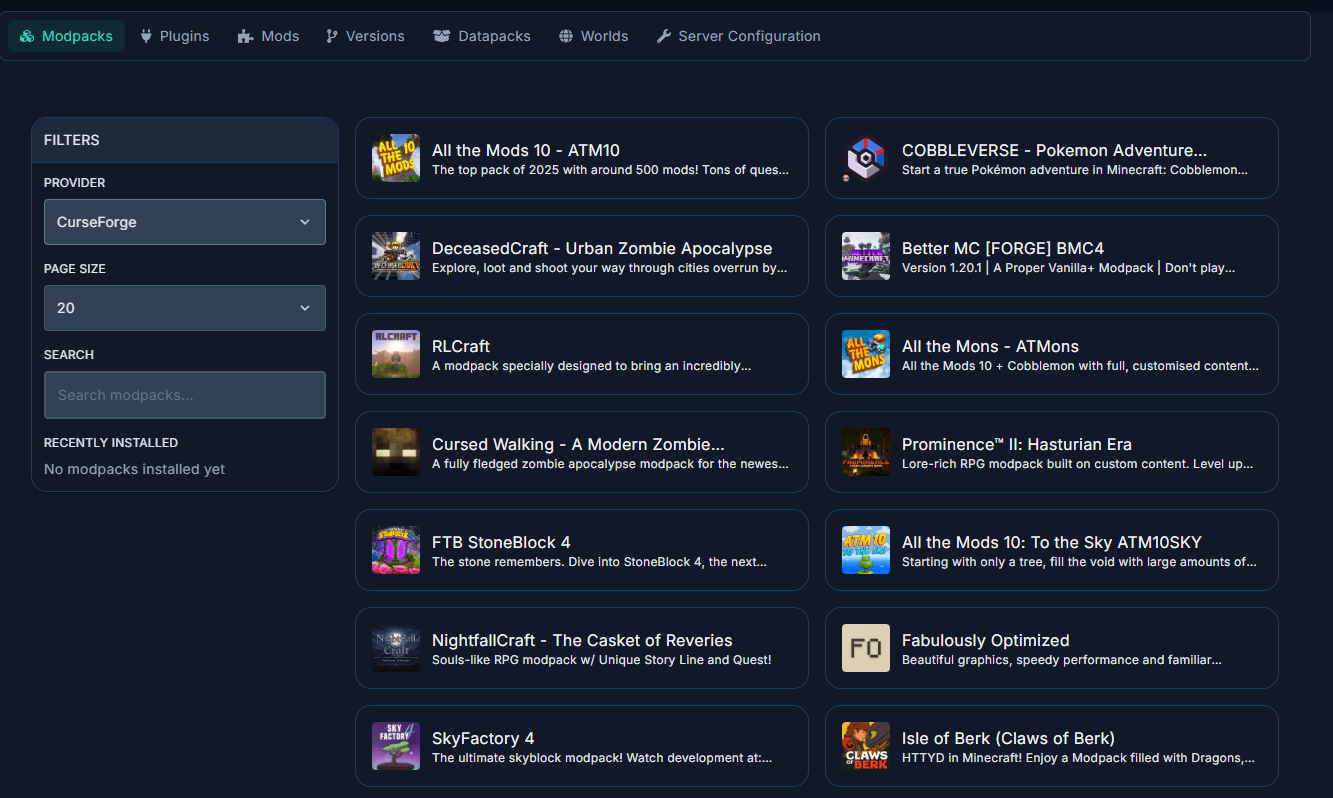
- Click on the modpack to see its details, including available versions.
- Select the version that matches your desired Minecraft version, then click Install.
- You'll be asked whether to delete existing server files. If this is a fresh setup, select yes. If you want to keep your world, select no — but be aware that leftover files from a different server type may cause conflicts.
- The installer will download and set up all the modpack files automatically. This may take a few minutes depending on the modpack size.
Setting the Correct Server Version
After the modpack installs, you may need to set the correct server type and version. For example, if the modpack requires Fabric 1.21.1:
- Go to the Versions tab in the Minecraft management bar.
- Select Fabric as the server type.
- Choose version 1.21.1 and install the latest build.
This ensures the server jar matches what the modpack expects. See our version change guide for more details.
Setting the Correct Java Version
Some modpacks require a specific Java version. If the server fails to start after installing a modpack, you may see an "Unsupported Java Version" dialog. Simply select the correct Java version from the dropdown and click Update Docker Image.
Common Java version requirements:
- Minecraft 1.17–1.20.4: Java 17 or above
- Minecraft 1.20.5+: Java 21 or above
- Some mods may require an exact Java version (e.g., Java 21 only). Check the modpack's documentation if you encounter issues.
Installing the Modpack on Your Client
You must install the same modpack on your computer to connect to the server. A vanilla Minecraft client cannot join a modded server.
- Download and install a modded launcher such as CurseForge App, Modrinth App, or Prism Launcher.
- Search for the same modpack and install the same version you installed on the server.
- Launch Minecraft through the modpack profile in your launcher.
- Connect to your server using the IP and port shown in your control panel.
If you get a "Failed to load registries" error when connecting, it means the client and server mods don't match. Double-check that both sides are running the exact same modpack version.