
How to Install Plugins on your Minecraft Server
Updated September 24, 2026
Plugins let you add features to your Minecraft server without requiring players to install anything on their client. From economy systems and minigames to anti-cheat and permissions management, plugins are the easiest way to customize a server.
Important: Plugins require a plugin-compatible server type such as Paper, Spigot, or BungeeCord. They do not work on Vanilla, Fabric, or Forge servers. If you're running a modded server, you need mods instead — see our mod installation guide.
Checking Plugin Compatibility
Before installing a plugin, verify the following on the plugin's page:
- Supported server types: Most plugins support Paper and Spigot. Some are platform-specific.
- Supported Minecraft versions: Plugins are built for specific Minecraft versions. A plugin for 1.20.4 may not work on 1.21.1. Always check the version list.
- Dependencies: Some plugins require other plugins to function (e.g., Vault for economy plugins). The plugin page will list any required dependencies.
Installing Plugins
- Open your server's control panel and go to the Plugins tab in the Minecraft management bar.
- Choose a provider at the top: Modrinth, CurseForge, SpigotMC, or Hangar.
- Find the plugin you want to install.
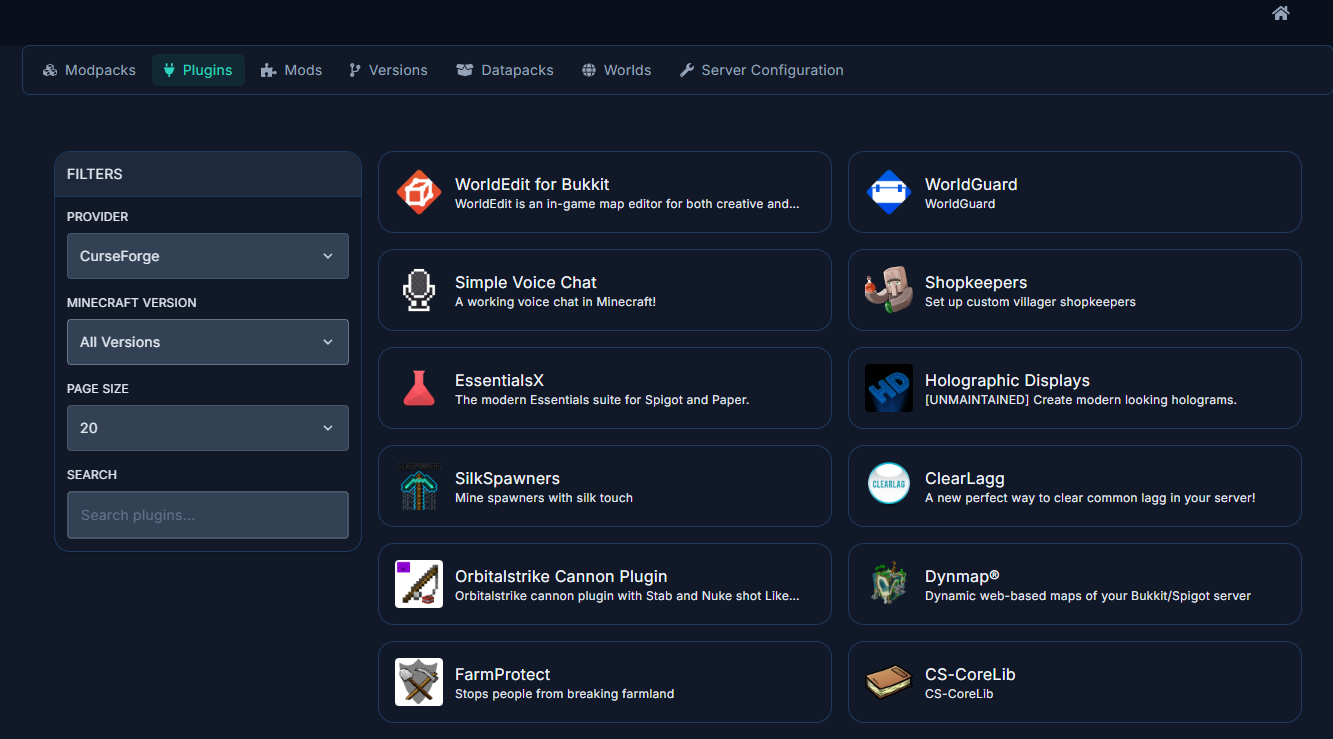
- Click on the plugin to see its details and available versions.
- Select the version that matches your Minecraft server version, then click Install.
- The plugin jar file will be downloaded directly into your server's
/pluginsfolder. - Restart your server for the plugin to load.
Managing Installed Plugins
Installed plugins are stored in the /plugins directory on your server. You can view and manage them through the File Manager tab:
- To remove a plugin, delete its
.jarfile from the/pluginsfolder and restart the server. - To update a plugin, install the new version from the Plugins tab — it will overwrite the old file.
- Plugin configuration files are usually created in subfolders within
/pluginsafter the first run. Edit them through the File Manager or the Server Configuration tool.
Troubleshooting
- Plugin not loading: Check the server console for error messages. The most common cause is a version mismatch — make sure the plugin supports your Minecraft version.
- Server crashes on startup: A plugin may be incompatible with your server type or another plugin. Remove recently added plugins one at a time to identify the culprit.
- "Unknown command" in-game: The plugin may not have loaded. Check the console output during startup for any errors related to that plugin.