
How to Install Mods on your Minecraft Server
Mods add new content to Minecraft — from new creatures and dimensions to overhauls of core game mechanics. Unlike plugins, mods change the game itself and require both the server and client to have the same mods installed.
Important: Mods require a mod-compatible server type such as Fabric or Forge. They do not work on Vanilla, Paper, or Spigot servers. If you want server-side-only customization that players don't need to install, use plugins instead — see our plugin installation guide.
Checking Mod Compatibility
Every mod is built for a specific server type and Minecraft version. Before installing, always check the mod's page for:
- Server type: Is it a Fabric mod or a Forge mod? These are not interchangeable. A Fabric mod will not load on a Forge server and vice versa.
- Minecraft version: Mods target specific versions (e.g., 1.21.1, 1.20.4). Using a mod built for the wrong Minecraft version will cause crashes.
- Dependencies: Many mods require library mods to function (e.g., Fabric API for most Fabric mods). The mod page will list these.
If you're installing multiple mods, make sure all of them support the same Minecraft version and server type.
Installing Mods
- Open your server's control panel and go to the Mods tab in the Minecraft management bar.
- Choose a provider: Modrinth or CurseForge.
- Find the mod you want to install.
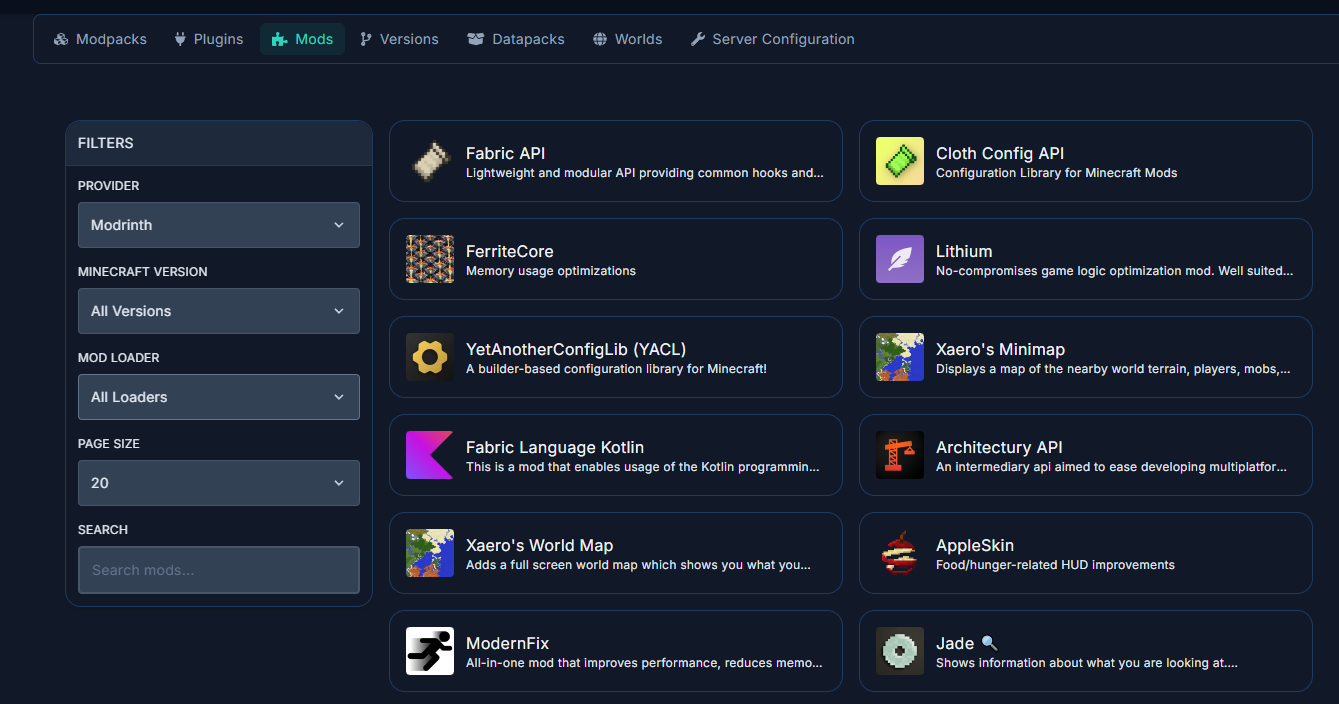
- Click on the mod to view its details and available versions.
- Select the version that matches both your Minecraft version and server type (Fabric/Forge), then click Install.
- The mod file will be downloaded directly into your server's
/modsfolder. - Restart your server to load the new mod.
Installing Mods on Your Client
Unlike plugins, mods must also be installed on your computer. A vanilla Minecraft client cannot connect to a modded server — you'll get a "Failed to load registries" or similar connection error.
- Install a modded launcher such as CurseForge App, Modrinth App, or Prism Launcher.
- Create a new profile with the same server type (Fabric or Forge) and Minecraft version as your server.
- Add the same mods to your client profile. Most launchers let you search and install mods directly.
- Launch Minecraft through the modded profile and connect to your server.
Tip: If you're using many mods together, consider using a modpack instead. Modpacks bundle all required mods into a single installable package — see our modpack installation guide.
Troubleshooting
- "Failed to load registries" when connecting: The mods on your client don't match the server. Make sure both sides have the exact same mods and versions installed.
- Server crashes on startup: Check the console for the error. Common causes include version mismatches, missing dependencies, or conflicts between mods.
- "Unsupported Java Version" dialog: Some mods require a specific Java version. Select the correct one from the dropdown when prompted.
- Mod not loading: Verify the mod supports your server type (Fabric vs. Forge) and Minecraft version. A Fabric mod file placed on a Forge server will simply be ignored.