
How to Make Your 7 Days to Die Server Private
If you are looking to run a server for your friends or a small group of people you know, we recommend you make your server private. You can do this by setting a server password or enabling a whitelist.
Setting a Server Password
By default, any player can join your server if it isn't password-protected. Having a password on your 7 Days to Die server requires users to know and enter the password before joining.
To set a password, you will need to access your server settings. If you are unsure how to edit your 7 Days to Die server settings, you can check out our guide on this here. Update the ServerPassword setting to the desired password.
Once your server restarts, all users will be required to enter the specified password you set before joining.
Enabling a Server Whitelist
A whitelist allows you to manually add players who can join your server. When creating a whitelist, you'll need each player's Steam64ID. Anyone not on the list will be unable to join your server. To find a player's SteamID, you can use the SteamID.io service.
- Open your server control panel and navigate to the File Manager tab.
- Search for
serveradmin.xmlto locate and open the file.
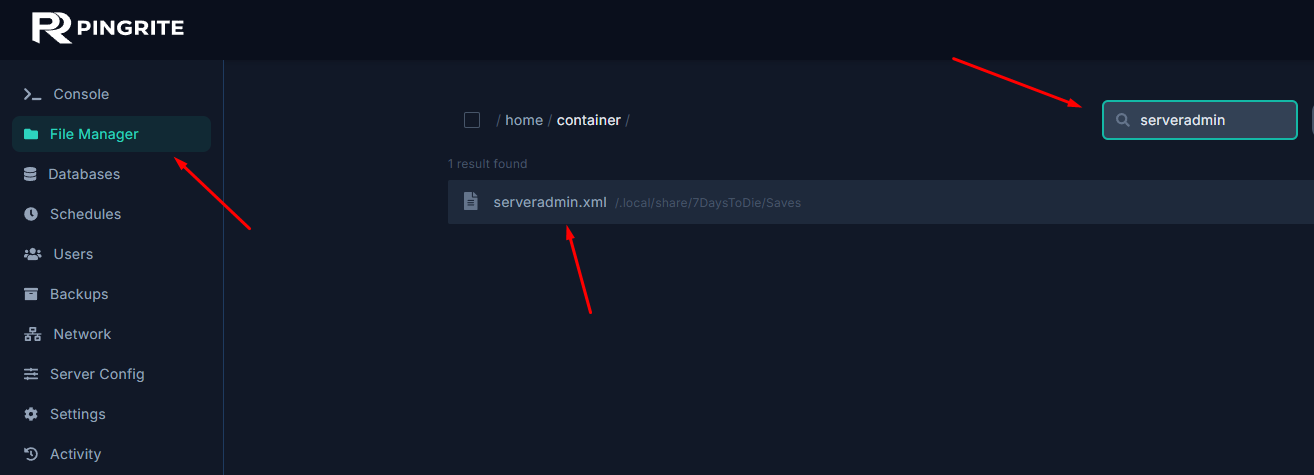
-
In the same file, locate the
<adminTools>section. The<whitelist>section will be inside of it. -
For each user you want to whitelist, add a line
<user steamid="YourSteam64ID">, replacingYourSteam64IDwith the player's SteamID64. Your code should look like the following:
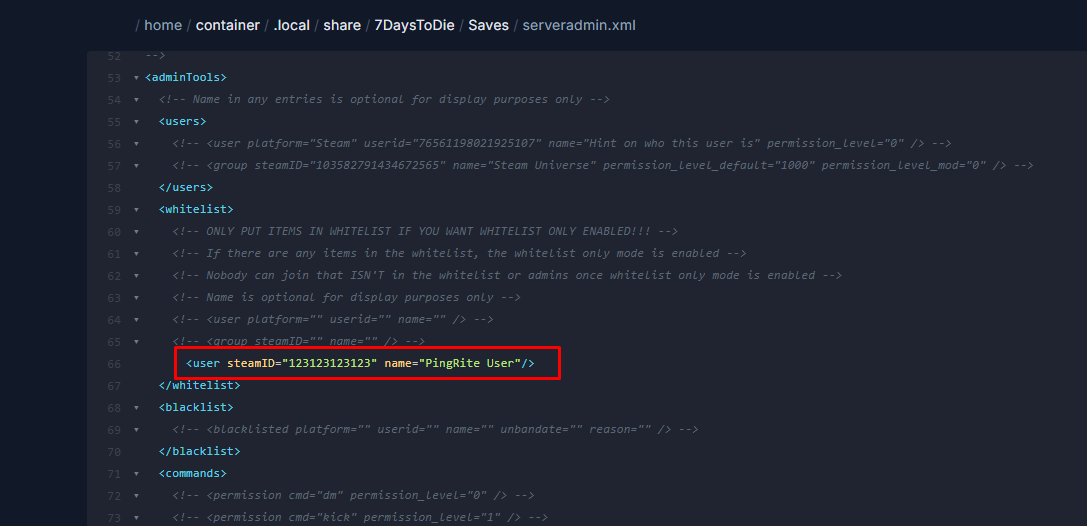
If you want to disable the whitelist later on, simply remove all users from the whitelist section.
- Save the file and restart your server for the changes to take effect.